In the Restaurants module you create your restaurant and set its service periods: for example Breakfast from 8:00 to 12:00 and Dinner from 19:00 to 23:00. Skyrez splits each period into time slots based on the interval you choose, and those are the times the guest sees in the widget.
Create the restaurant
1. Open My Restaurants
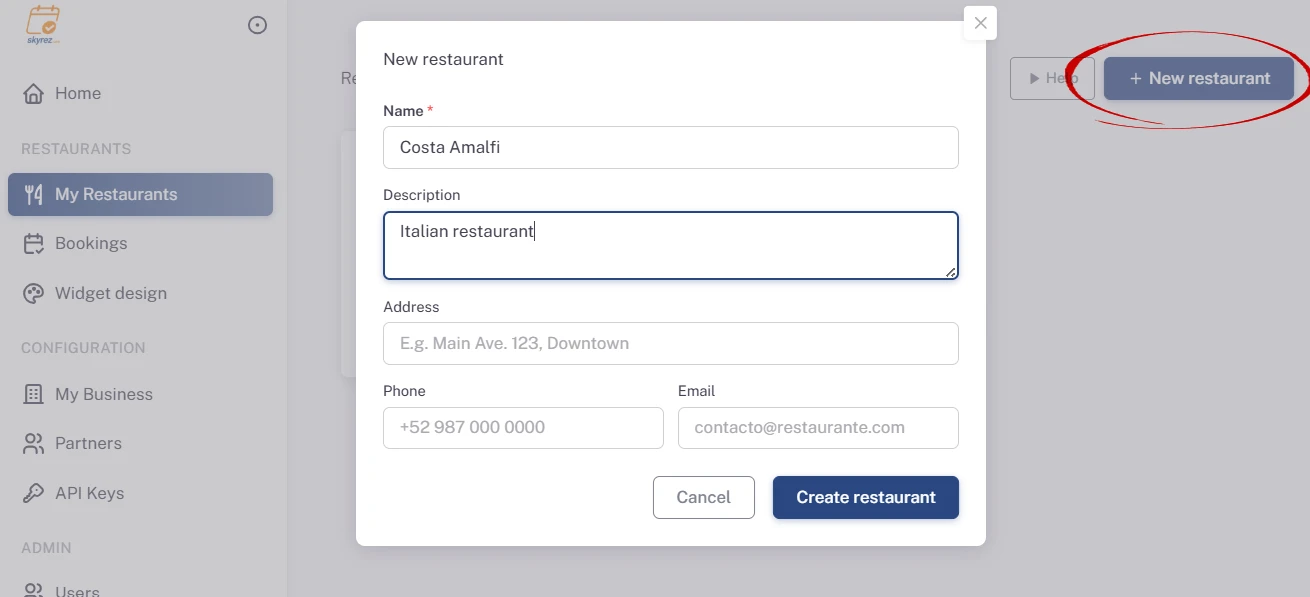
Go to the Restaurants module, click My Restaurants and then New restaurant.
2. Fill in the details
Enter the Name, a short description, the address, phone and email. Click Create restaurant.
3. Check the information and settings
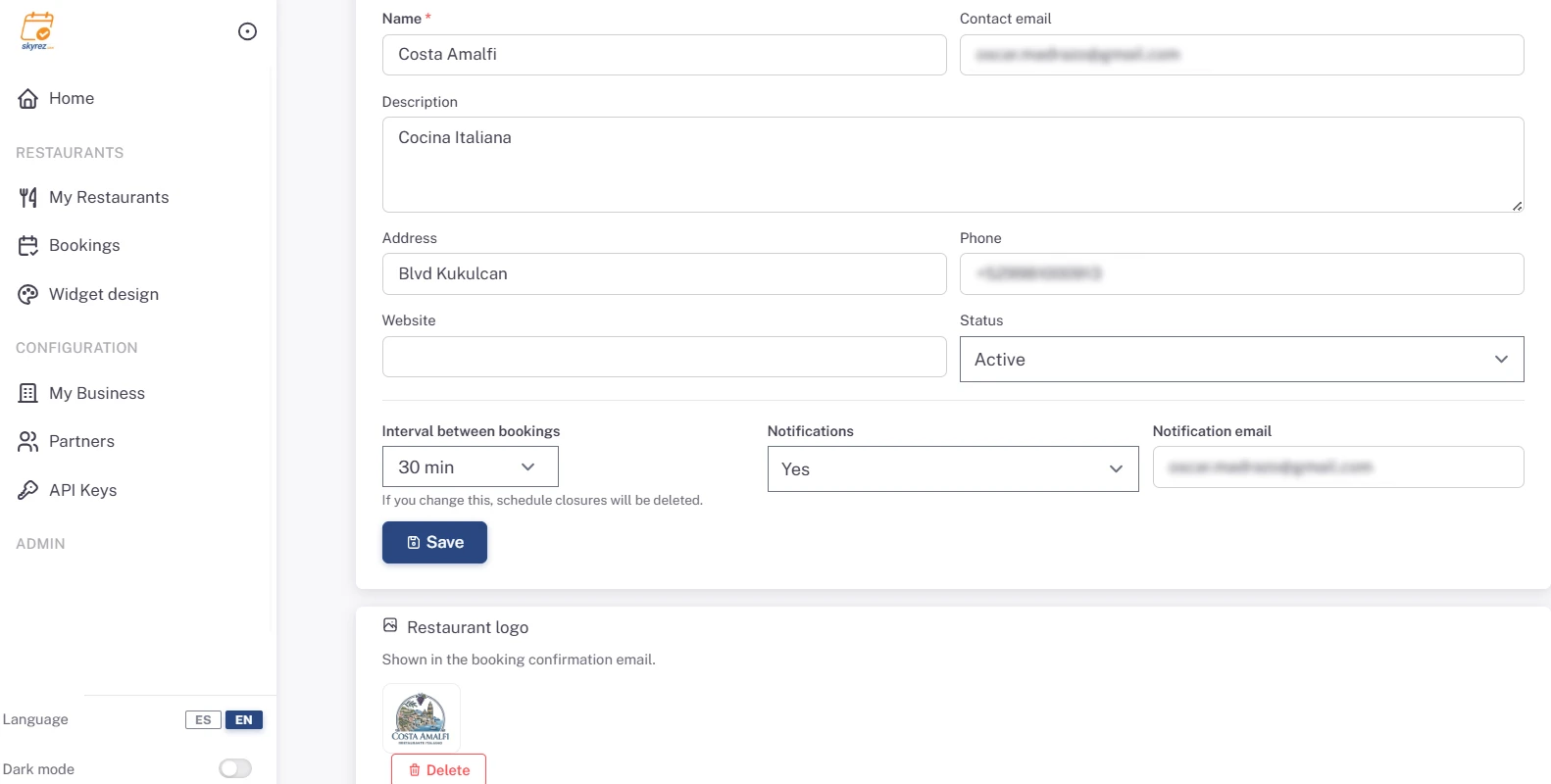
In the list, click Configure. In the Information & settings tab check:
- Status: it must be Active for the widget to work.
- Interval between bookings: how often guests can book (15, 30, 45 or 60 minutes). With 30 minutes, a period from 19:00 to 21:00 offers 19:00, 19:30, 20:00 and 20:30: the last slot is before the end time, so set the end time to your last booking time plus one interval.
- Notifications: choose Yes and enter the Notification email. You get an alert there every time a guest confirms their booking.
- Restaurant logo: it appears in the email the guest receives.
Click Save.
If you change the interval later, any schedule closures you made are deleted, because the time slots change.
Add the service periods
4. Create a period
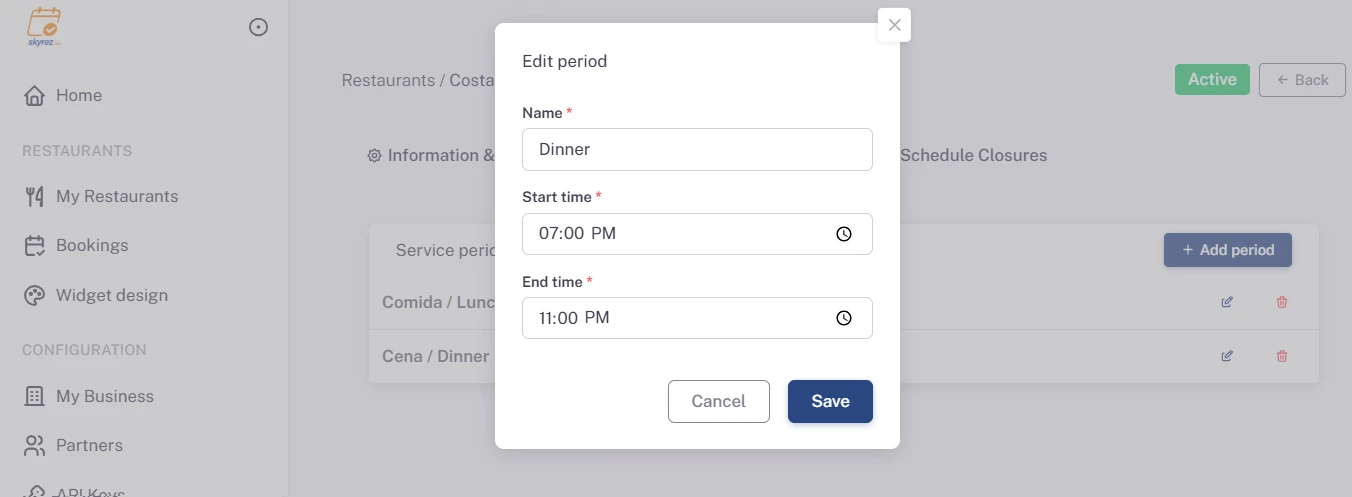
In the Periods / Schedules tab, click Add period and enter the name (for example "Dinner"), the Start time and the End time. Save it.
5. Repeat for each service
Add all your periods. You need at least one for the widget to work. Periods apply every day; to close a specific day or time, see Close days and time slots at your restaurant.
Install the widget
In the Information & settings tab, under Integration code, choose the Widget language and copy the code you prefer:
- Widget embedded in your page (recommended): date, time and party size always visible.
- Floating button: a button in the corner that opens the same widget.
- Horizontal widget (search): a search bar; clicking "Book" opens the full widget in a new window.
Paste the code into your website. If you're not sure where, see Install the widget on your website. To change colors and the button style, see Customize the widget design.