In Restaurants the guest doesn't pay in the widget. To prevent fake bookings, each booking is confirmed from the guest's email.
How a booking arrives
- The guest picks the date, time and party size in the widget, and enters their name, email, phone, occasion and notes.
- They receive a "Confirm your booking" email with a button to confirm it. The link is valid for 24 hours.
- When they click it, the booking becomes Confirmed and the guest sees the confirmation page with their reference.
- If you turned on Notifications in Information & settings, you get a "New booking confirmed" email with the guest's details.
Until the guest clicks, the booking shows as Pending. If the link expires, the guest has to make a new booking.
Review your bookings
1. Open Bookings
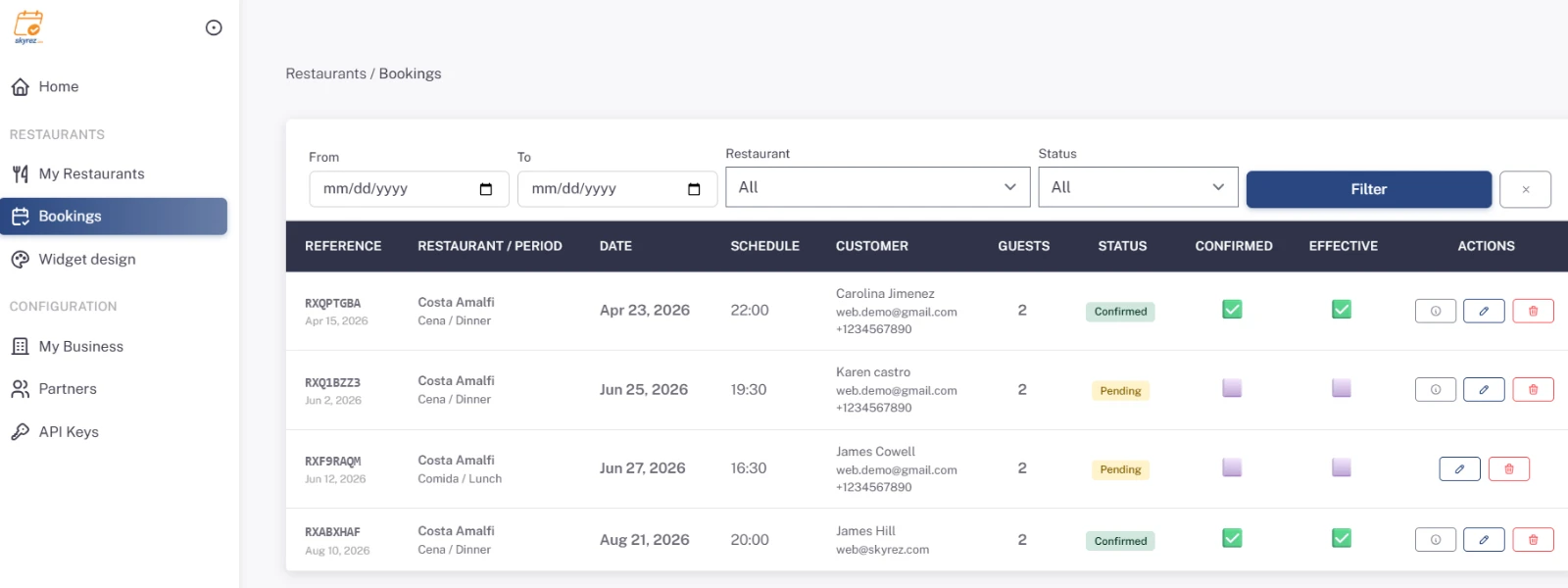
In the Restaurants module, click Bookings. You'll see the reference, restaurant and period, date, time, the guest with their email and phone, and the party size.
2. Filter
Use From, To, Restaurant and Status and click Filter. Filter by today's date to see the day's bookings.
Mark and manage
- Status: Confirmed when the guest confirmed from their email; Pending if they haven't yet.
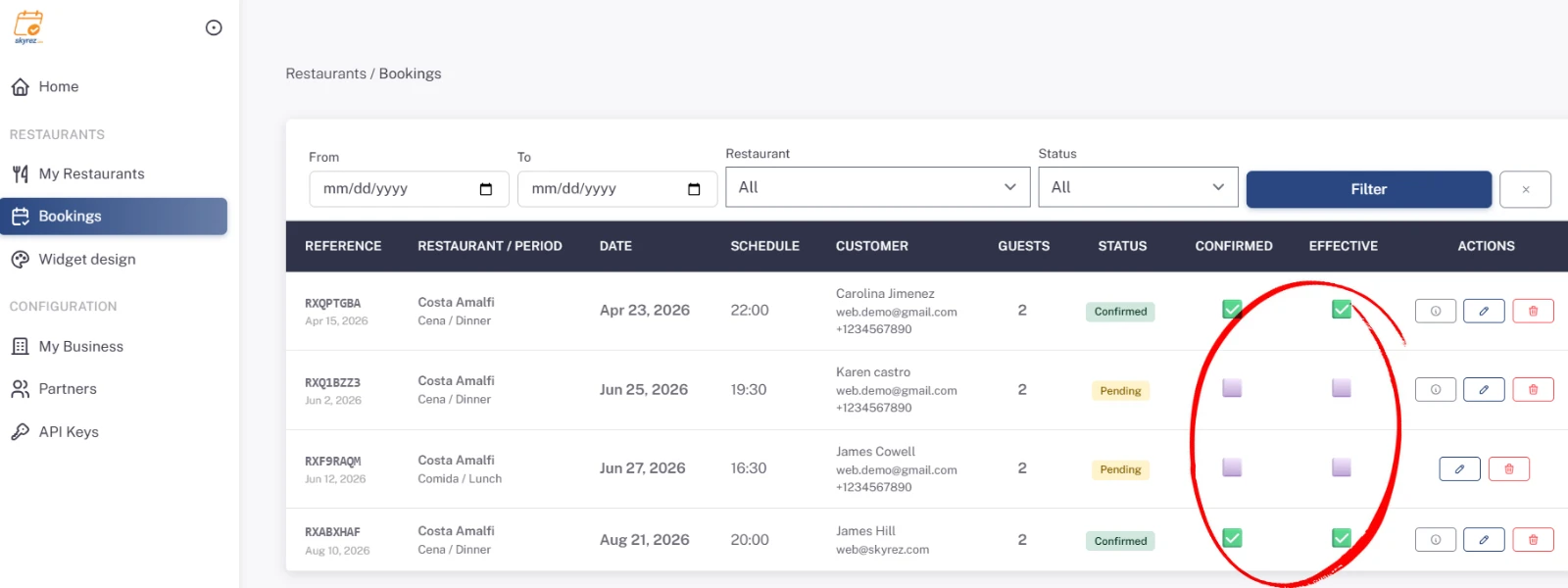
- Confirmed (✅ / ⬜): turns on by itself when the guest confirms from their email. You can also turn it on or off with a click, for example if the guest confirmed by phone.
- Effective (✅ / ⬜): mark the bookings where the guest actually showed up.
- Delete: remove the booking with the trash button.
Connect your systems
If you use your own system, you can receive each booking by webhook. Set it up in My Business, under Webhooks.
Was this article helpful?
Questions? [email protected]