Every booking from your widgets, pages and partners arrives in Bookings, in the Transportation module.
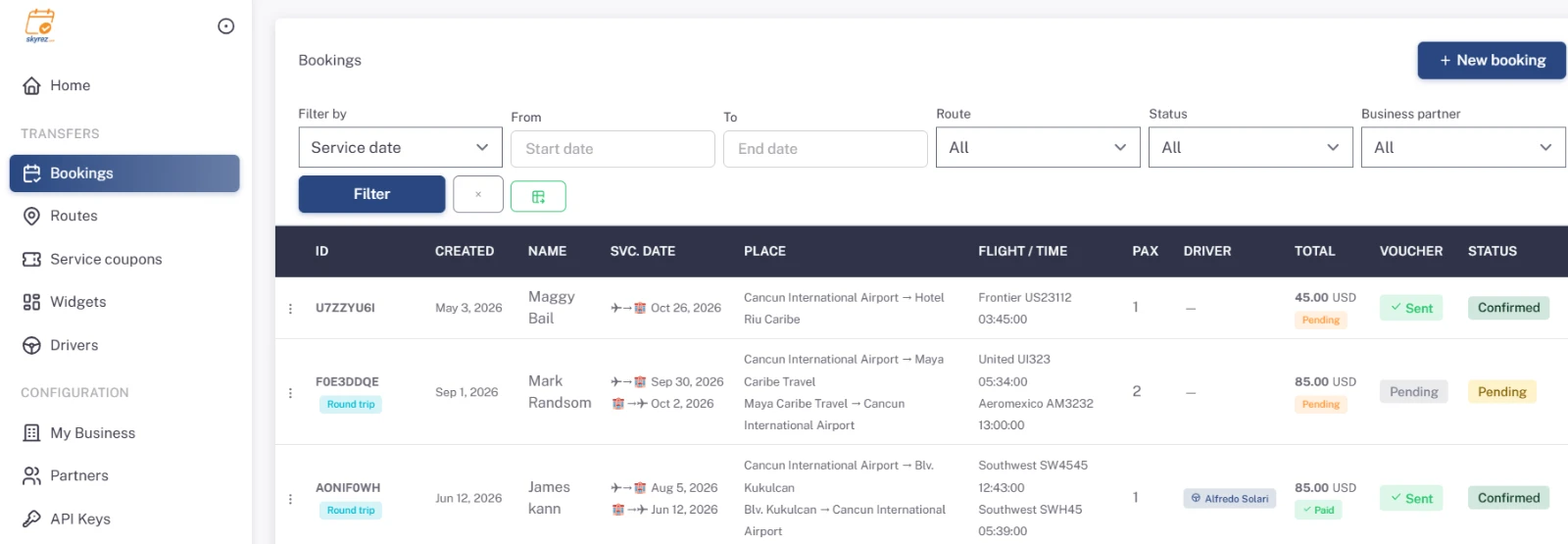
Find a booking
Above the list you can filter by:
- Service date or Booking date, with a from/to range.
- Route, Status and Business partner.
Click Filter to apply.
For each booking the table shows the customer, service date, place, flight and time, passengers, driver, total, whether the voucher was sent, and its status. Round trips are marked as such.
Review and edit a booking
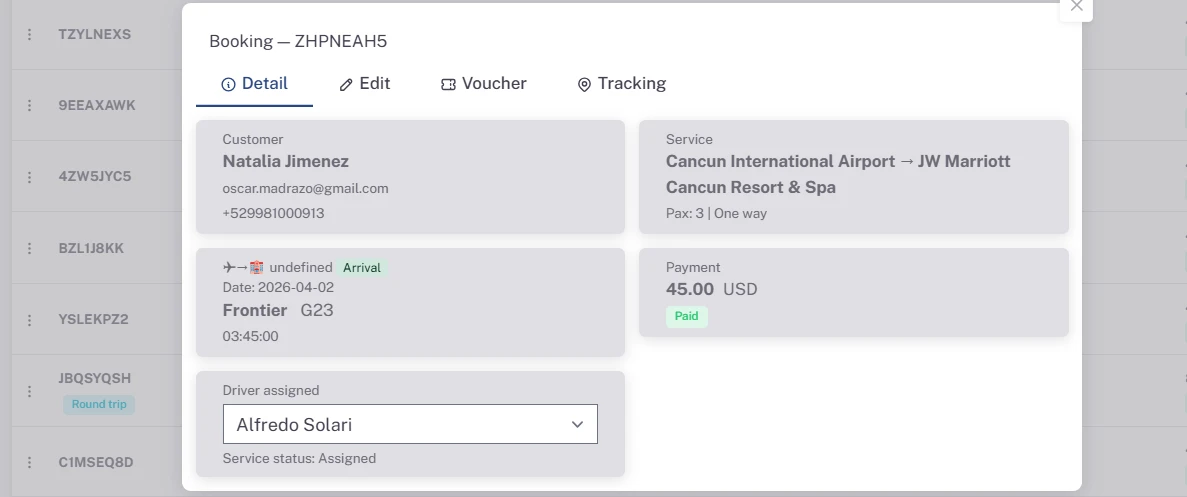
Click View detail to open the booking. It has several tabs:
- Detail: the customer, service and payment details.
- Edit: change the name, contact info, flights, hotel or address, passengers, service date, Status and Customer language (the language used for the confirmation and voucher). Click Save changes.
- Voucher: review the voucher and send it to the customer.
- Tracking: the service's progress when a driver runs it with the app.
Statuses
- Pending: a new booking, not yet confirmed.
- Confirmed: you've reviewed it and it's ready to operate.
- Completed: the service has been done.
- Cancelled: the booking won't take place.
Send the voucher to the customer
In the Voucher tab, review the content and send it. The voucher includes the service, your business contact details and your policies. The list's Voucher column changes to sent.
Assign a driver
In the booking detail, under Driver assigned, choose the driver. They'll see it in their app. If you don't have drivers yet, add one under Drivers.
Mark bookings as paid
For bookings you collected outside Skyrez (cash, bank transfer…), check their boxes in the list and click Mark as paid. Bookings paid through Stripe show as Paid automatically.
Create a booking manually
Use New booking to enter a booking you received by phone, WhatsApp or email. Skyrez charges no fee on it.
Export to Excel
Export to Excel downloads the bookings in the current filter; for example, to give your operations team tomorrow's service report.