Transportation rates are organized in rate sets. A set is a complete price list for a route: for example "Regular Service", "Luxury" or a special list for an agency. In each set you define passenger ranges (one per vehicle type) and the price of each range in each zone.
Before setting prices you need a route with zones. See Create your route and its zones on the map.
1. Open the route's rates
In Routes, click Configure on your route and then Rates (at the top, next to the route name).
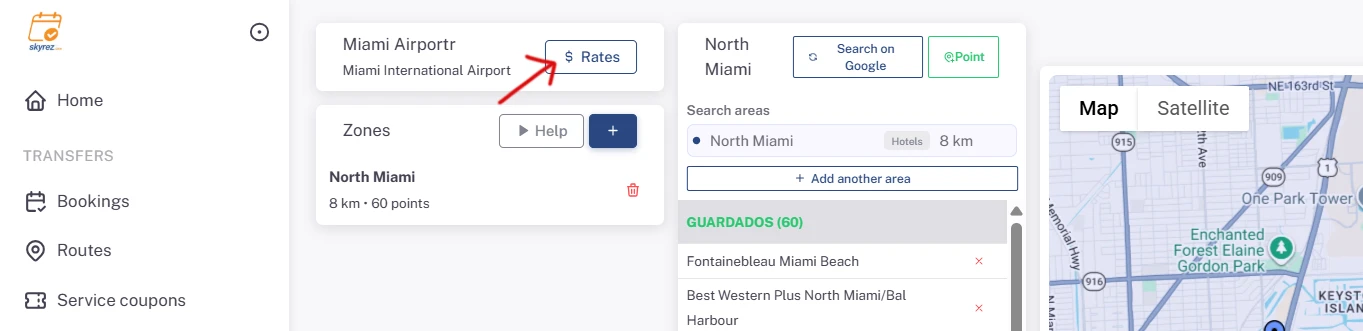
2. Create a rate set
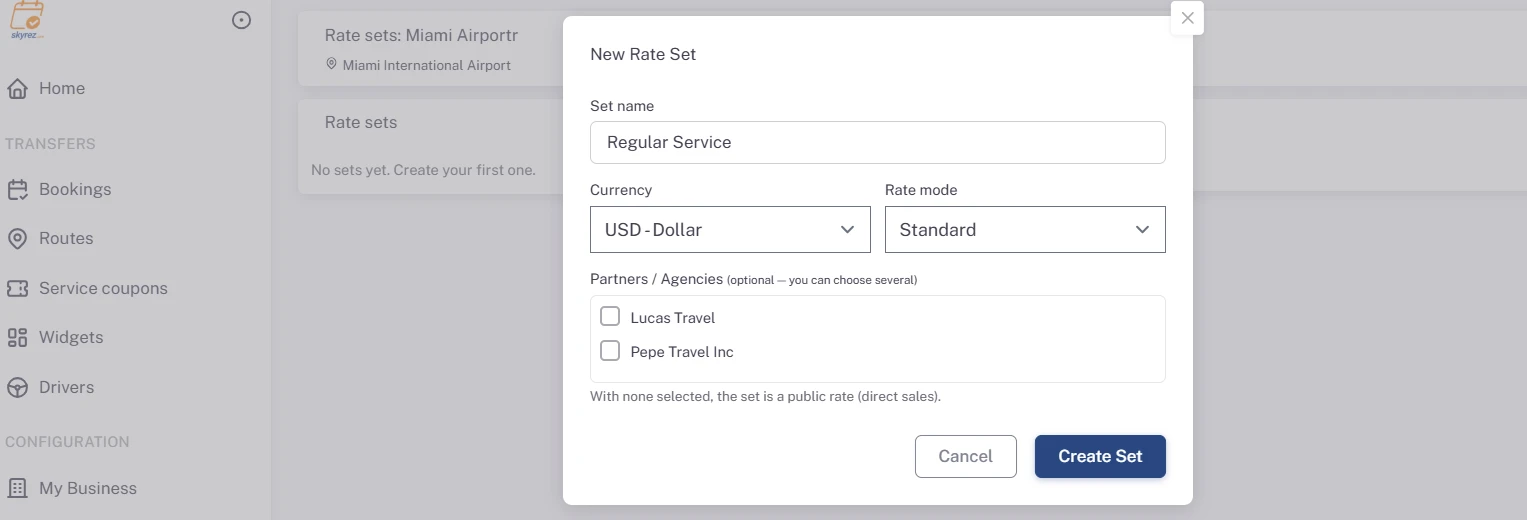
Click + under Rate sets and fill in:
- Set name: for example "Regular Service".
- Currency: the currency you'll charge for this set.
- Partners / Agencies (optional): leave it empty to make it your public rate, the one any customer sees in your widget. If you check one or more partners, the set becomes their special price list. See Add your business partners.
Click Create Set.
3. Add passenger ranges
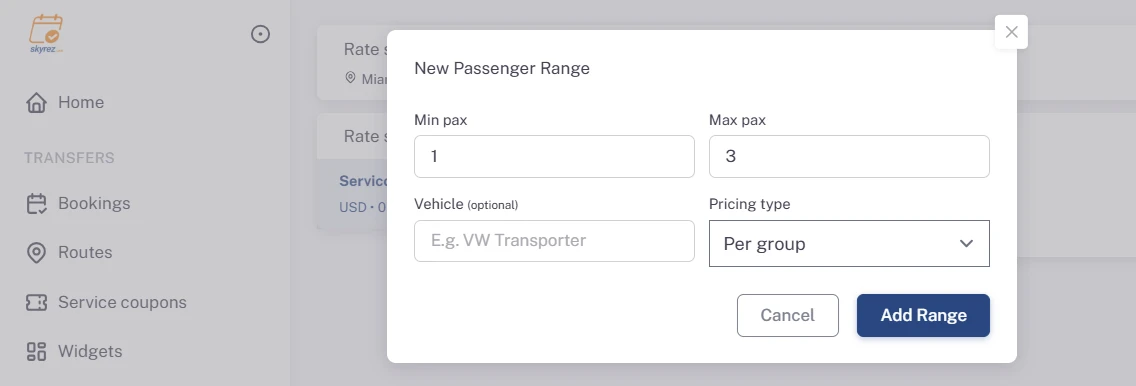
Click the set and then Add range. Each range is usually a vehicle type:
- Min pax and Max pax: for example 1 to 4 for a sedan, 5 to 10 for a van.
- Vehicle (optional): the name customers will see, for example "Suburban" or "VW Transporter".
- Pricing type: Per group (one price for the whole vehicle) or Per person (the price is multiplied by the number of passengers, typical of shared services).
Click Add Range and repeat for your other vehicles.
4. Enter the prices per zone
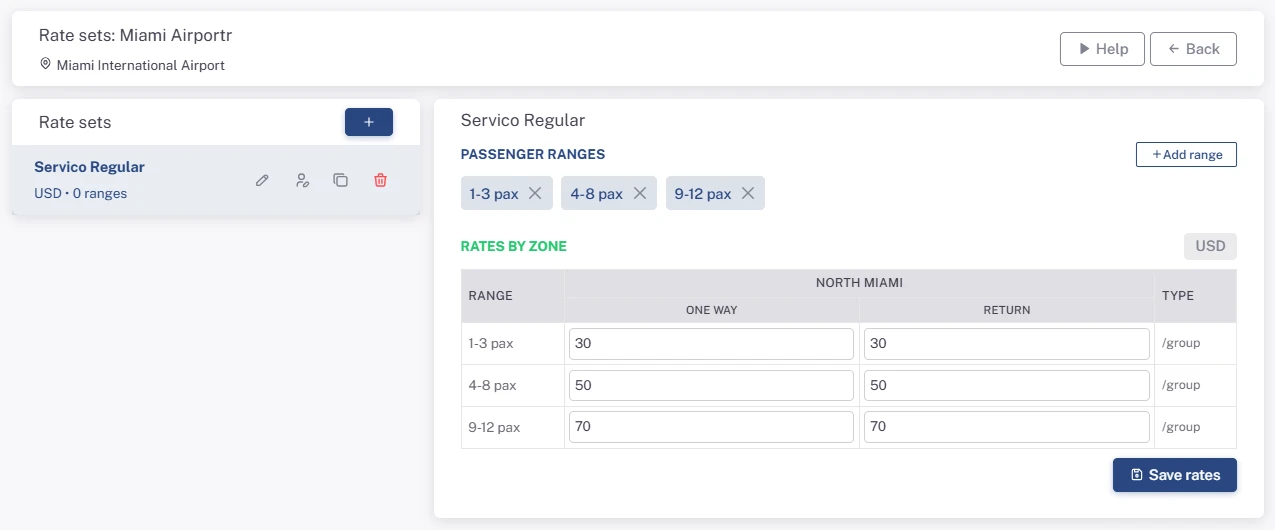
Under the rates per zone you'll see one row per zone and, for each range, two columns:
- One way: the one-way price.
- Return: the price of the return leg. A round trip is charged One way + Return.
If you offer round trips, always fill in Return: if you leave it empty, the round trip is charged at the same price as one way.
Click Save rates.
Tips
- Duplicate set copies a whole set so you only adjust a few prices; for example, to build an agency's list from your public rate.
- Each widget uses the set you choose when you add the route to it. See Create your transportation widget.
Was this article helpful?
Questions? [email protected]