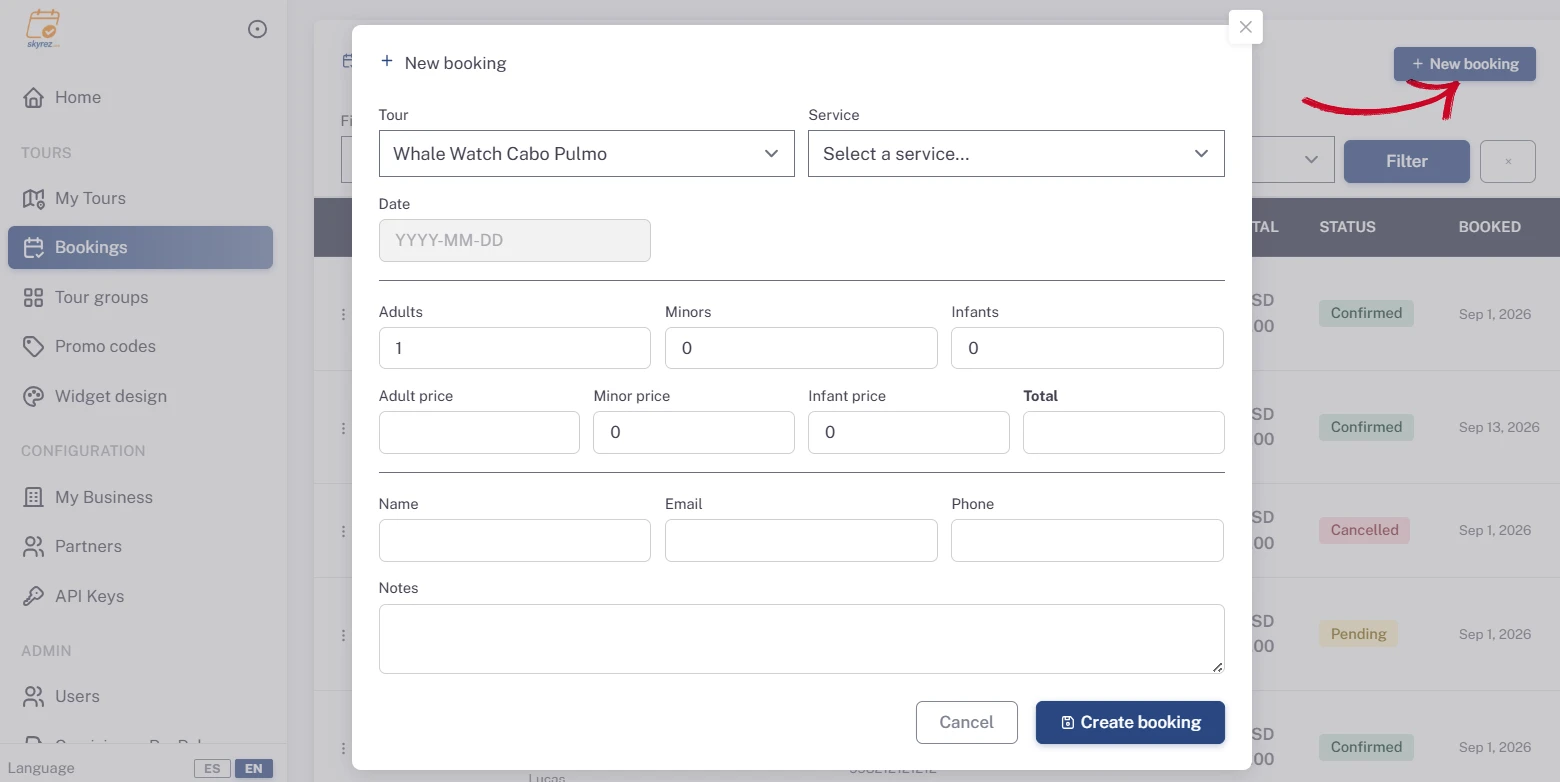
All your tour bookings arrive in Bookings, in the Tours module.
Tours widget bookings don't send you an email notification. Check this section often, or set up a webhook in My Business if you want to receive them in another system.
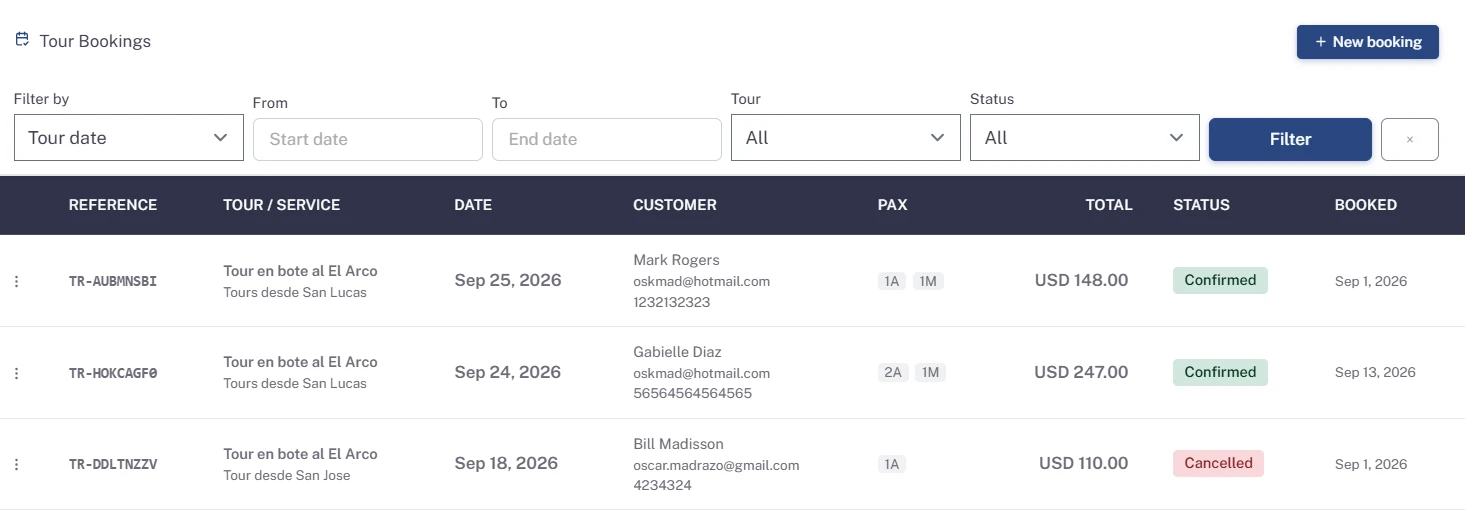
Find a booking
Filter by tour date or Booking date (with a date range), by Tour and by Status, then click Filter.
The table shows the reference, tour and service, date, customer, total and status. A label tells you whether you've already sent the coupon and whether the service has been completed.
Review and edit a booking
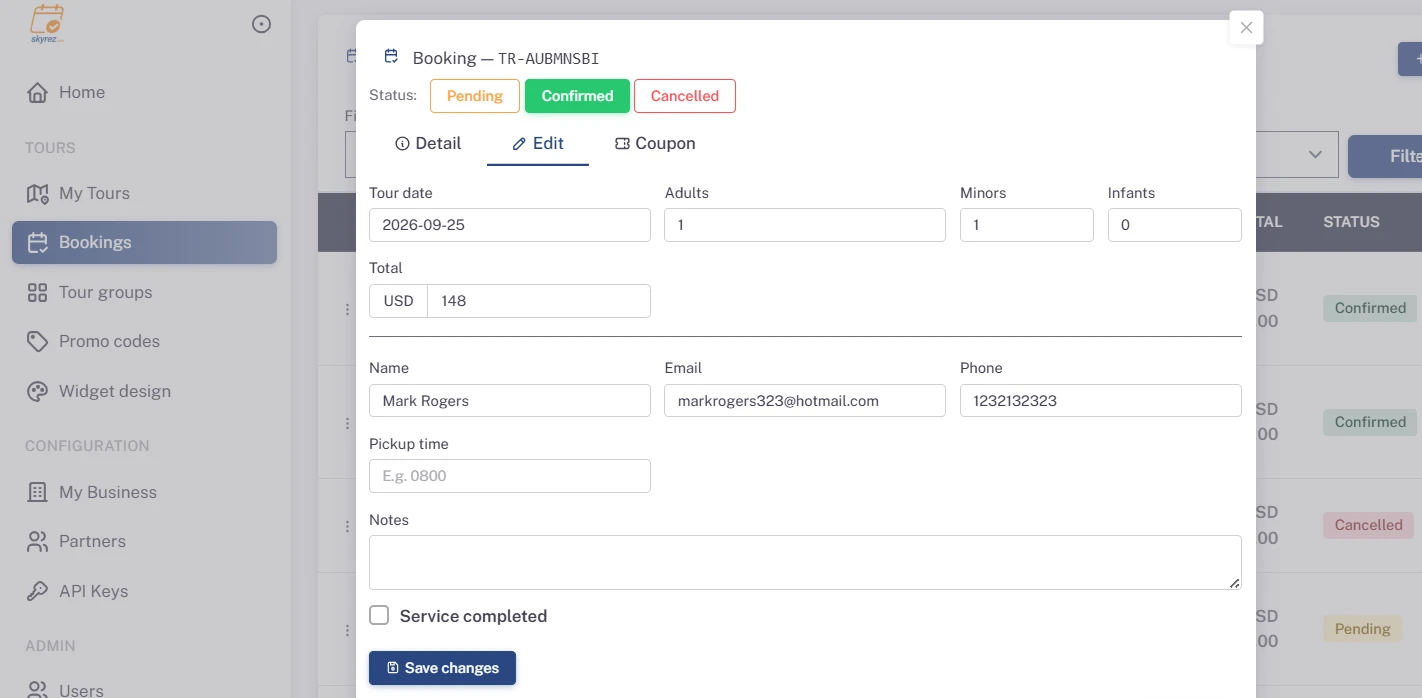
Click View detail to see the tour, service, date, departure time, pick-up place, passengers, total and the customer's details.
Under Edit you can change the date, passengers, total, customer details, Pickup time (for example 0800) and notes. Check Service completed once the tour has taken place. Click Save changes.
Statuses
- Pending: a new booking to review.
- Confirmed: ready to operate.
- Cancelled: won't take place.
Send the coupon to the customer
Click Send coupon (or use the coupon tab). The customer gets an email with their coupon showing the tour details, departure time, meeting point or pickup time, and your contact details. If you change the pickup time, send it again.
Create a booking manually
Use New booking to enter a booking you received by phone, WhatsApp or email:
- Choose the Tour, the service, the date and, if applicable, the departure time and the pickup place.
- Enter the passengers. The price is calculated from your rates, but you can adjust it.
- Enter the customer's Name, Email and Phone.
- Click the create button.
Skyrez charges no fee on bookings you enter yourself.