A rental's price depends on the season and the configuration the guest picks. In Skyrez you create the seasons and then fill in a table with the nightly price for each combination.
Before setting prices you need at least one configuration. See Create your rental property and its configurations.
Create the seasons
1. Open Seasons & Rates
In My Properties, click Configure on your property and open the Seasons & Rates tab.
2. Add a season
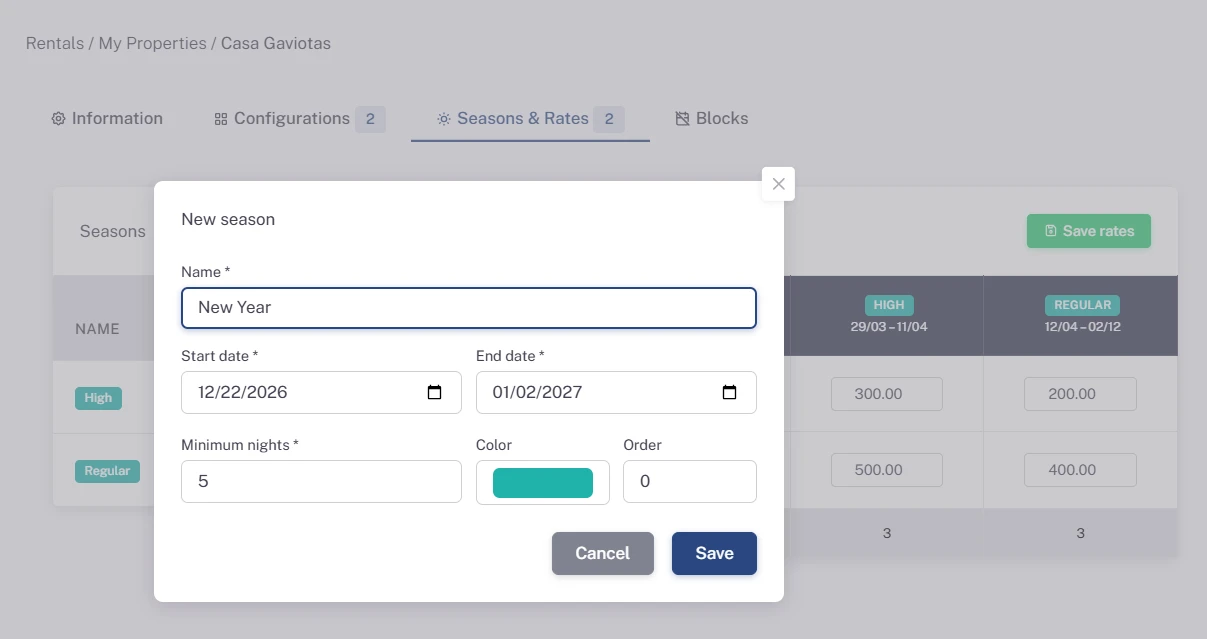
Click Add next to Seasons and fill in:
- Name: for example "HIGH 2026" or "Low season".
- Start date and End date: the period it covers.
- Minimum nights: guests can't book fewer nights than this when their arrival falls in this season.
- Color: to tell it apart in the table.
Click Save. Repeat for all your seasons and make sure they cover every date you take bookings for.
Set the rates
3. Fill in the nightly rates table
Under Nightly rates there is a table: each row is a configuration and each column a season. Enter the price per night in each cell and click Save rates.
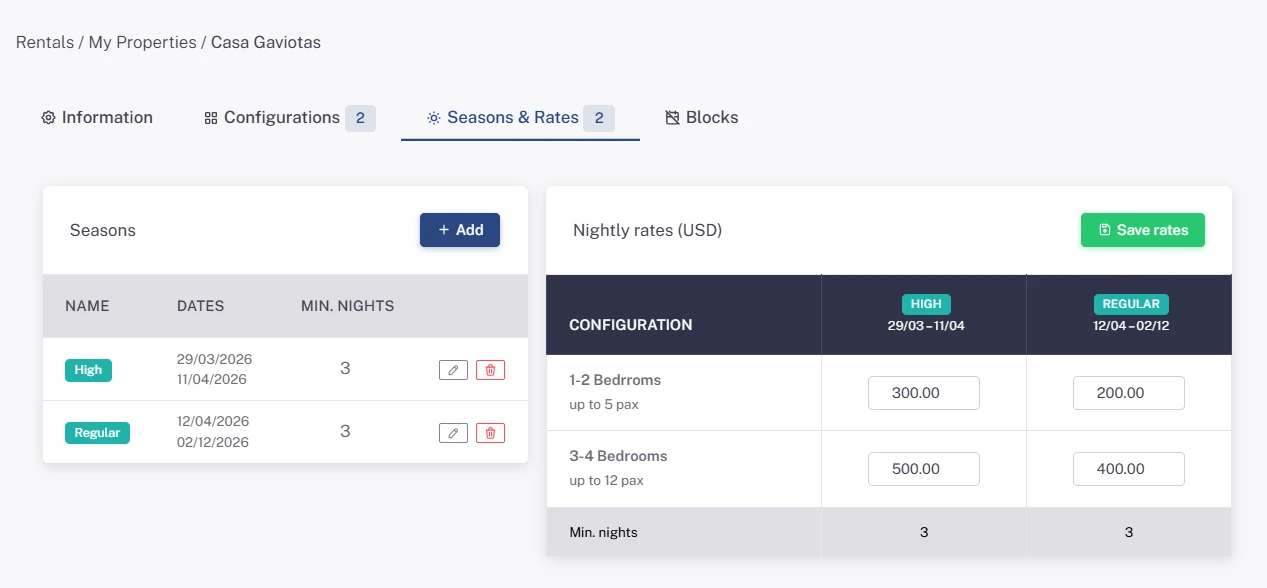
If a stay spans two seasons, the widget charges each night at its season's rate and shows the guest the breakdown and the estimated total. If the chosen dates have no rate, the widget says the host will send the price upon confirmation. That's why your seasons should cover every date you rent.
Block dates
4. Open the blocks
On the property page click the Blocks tab (or Block dates from My Properties).
5. Select the range
On the calendar, click the first day and then the last day you want to block. Add a Reason if you like (for example "Maintenance" or "Direct booking") and click Block.
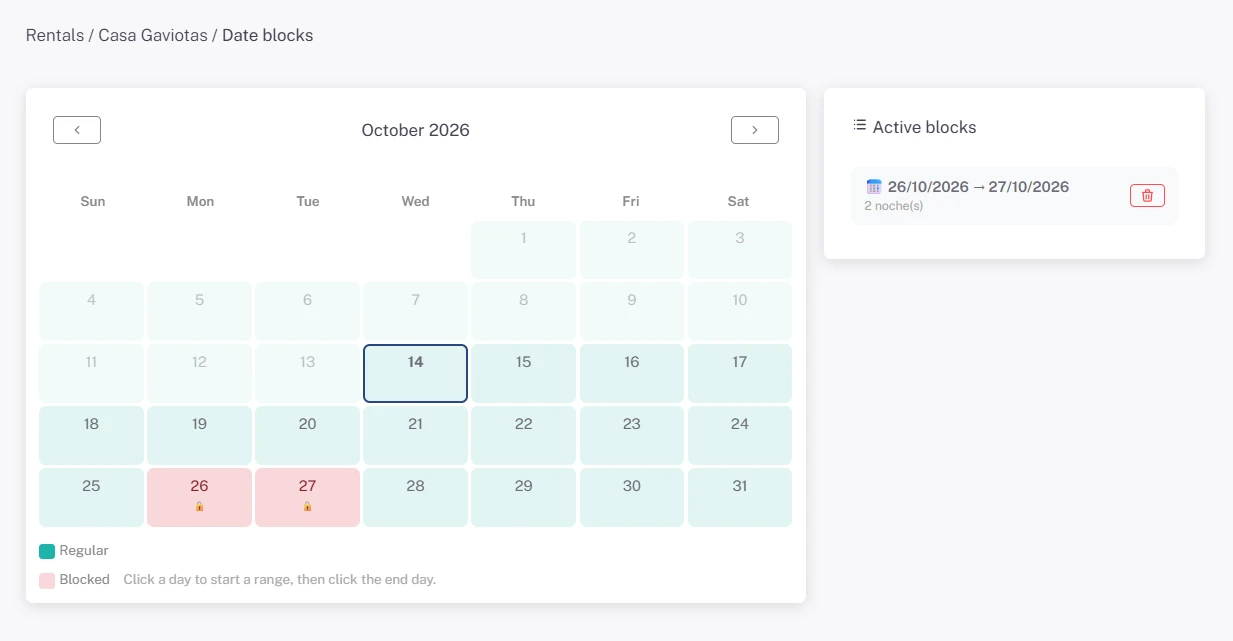
Blocked dates can no longer be picked in the widget. To free them, delete the block under Active blocks.
You don't need to block the dates of your requests: pending and confirmed requests already take up the calendar automatically.