Once Stripe is connected, your Transportation, Tours and Hotels widgets charge the customer's card at the time of booking. The payment is made directly to your Stripe account: Skyrez never receives or holds your money, it only takes its 2% fee on each payment.
Before you start, fill in your business details in My Business. See Set up My Business.
1. Open My Business
In the left menu, under Configuration, click My Business and scroll down to the Stripe Connect card. It will show Not connected.
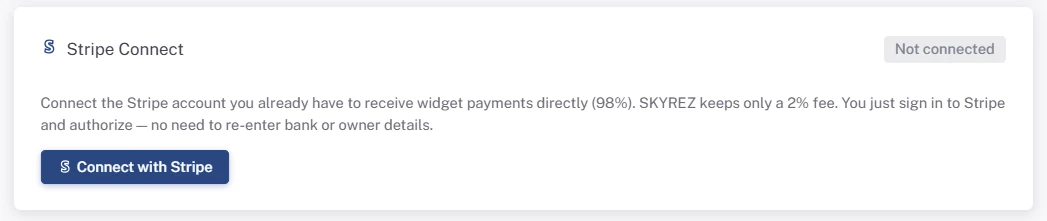
2. Click "Connect with Stripe"
The Stripe page will open.
3. Log in to Stripe and authorize
Log in with your Stripe account and authorize the connection with Skyrez. If you don't have a Stripe account yet, you can create one in that same step.
You don't need to enter any bank details in Skyrez: the ones you already have in Stripe are used.
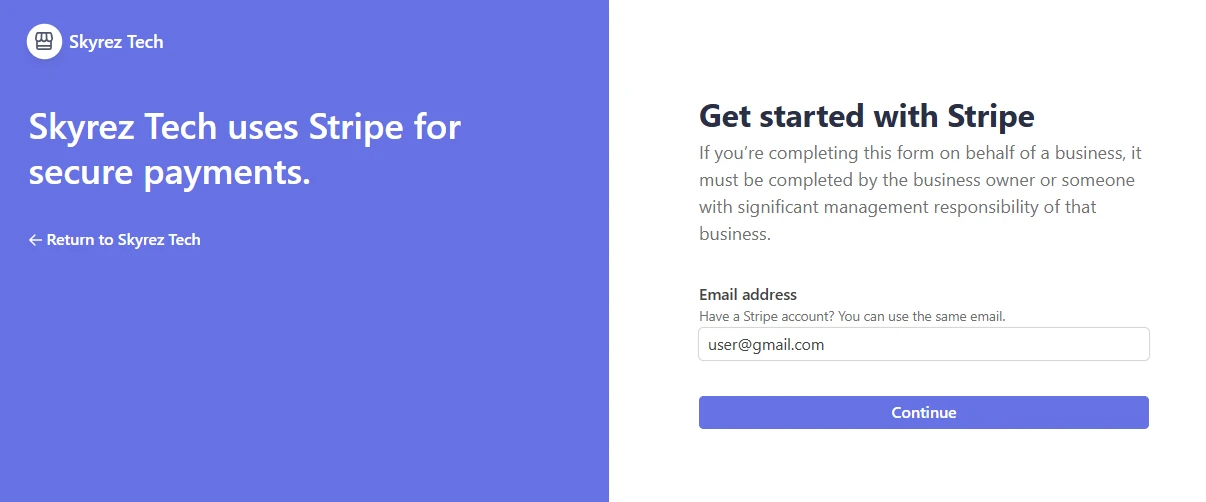
4. Check that it says "Connected"
Stripe sends you back to My Business. The card should show Connected. From that moment on, your widgets ask for card payment.

Frequently asked questions
What if it says "Incomplete onboarding"?
The connection wasn't finished, for example because you closed the Stripe window before completing it. Click Retry connection and complete the process.
When do I get the money?
The payment goes to your Stripe balance and Stripe pays it out to your bank on the payout schedule you have set in Stripe.
How do I issue a refund?
Refunds are made from your Stripe dashboard, since the payment is in your account.
What if I don't connect Stripe?
The widget still takes bookings, just without online payment: the booking is confirmed without asking for a card, and you collect payment yourself.
Can I disconnect it?
Yes, with Disconnect Stripe. Keep in mind your widgets will stop taking online payments until you connect again.
Next step
Learn how the fee works in Skyrez's fee.