Besides Stripe, you can take PayPal payments in your Tours widgets. The payment goes straight to your PayPal Business account; Skyrez doesn't process or touch it.
PayPal is in a pilot phase and currently works only in the Tours module. To enable it on your account, email us at [email protected]. Once enabled, you'll see the PayPal Checkout card in My Business.
What you need
- A PayPal Business account.
- A PayPal Client ID and Secret. You get them by creating a REST app at developer.paypal.com.
1. Create a REST app in PayPal
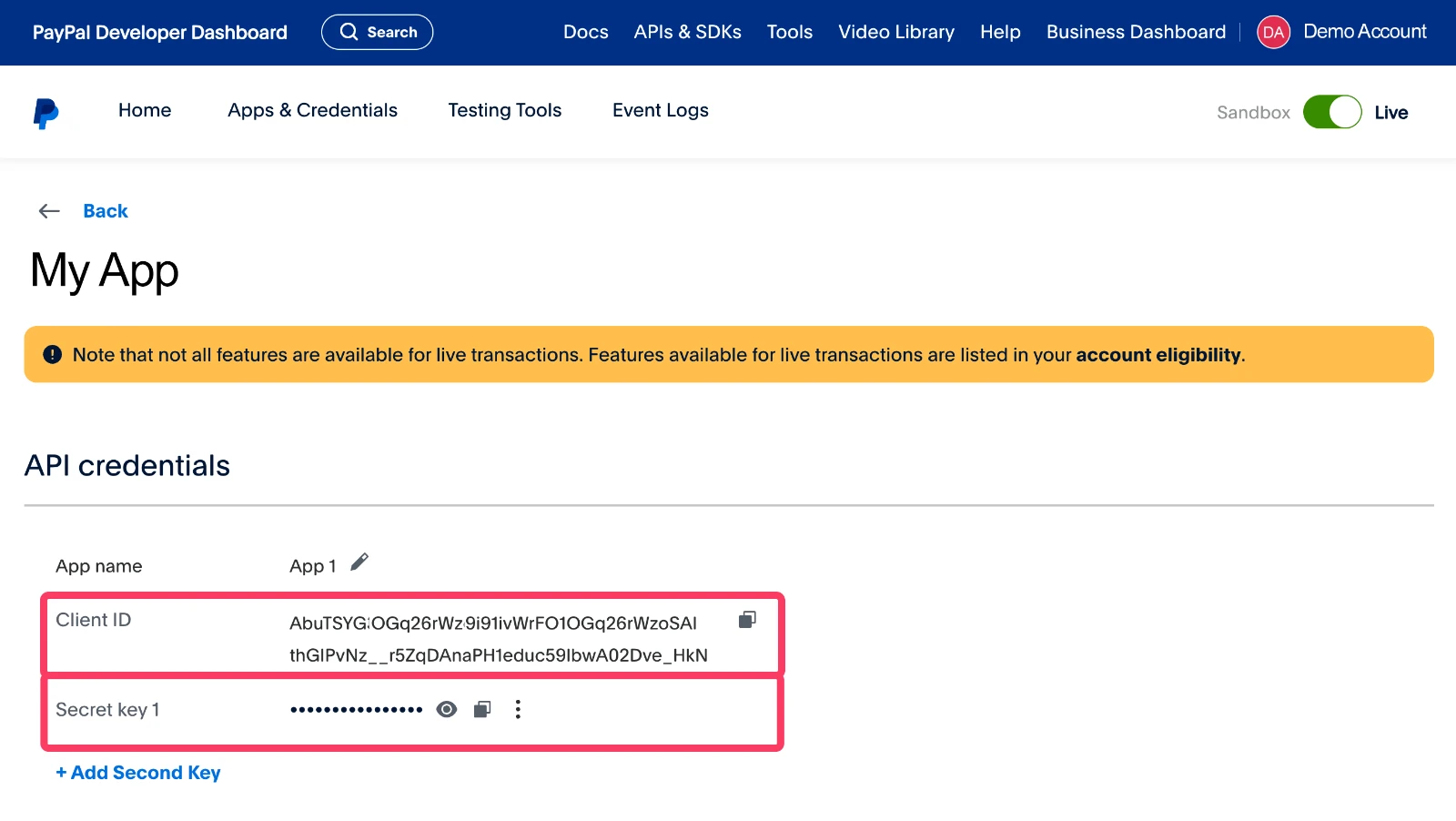
Log in to developer.paypal.com with your PayPal Business account. Under Apps & Credentials, make sure you're in Live mode and create an app. You'll see the Client ID and Secret there.
2. Open the PayPal Checkout card
In Skyrez, go to Configuration → My Business and scroll down to PayPal Checkout.
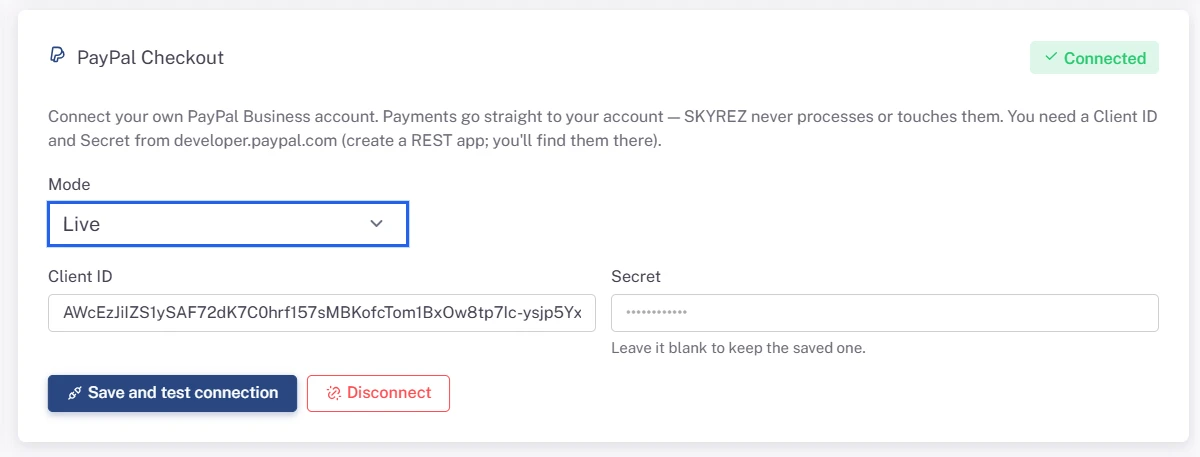
3. Paste your credentials
- Mode: choose Live for real payments. Sandbox is only for testing with PayPal test accounts.
- Client ID and Secret: paste them exactly as PayPal shows them.
4. Save and test the connection
Click the save-and-test button. If the details are correct, the card switches to Connected.
What does your customer see?
When PayPal is connected, the Tours widget offers PayPal checkout instead of Stripe.
How is the fee charged?
Since the payment doesn't go through Skyrez, the 2% fee isn't deducted at the time of payment: we invoice it to you afterwards. More details in Skyrez's fee.
Disconnecting
Disconnecting deletes the saved credentials, and the widget goes back to charging through Stripe (if you have it connected).