Time slots are the entry times guests choose in the widget, each with a capacity: how many people can enter at that time. Skyrez subtracts the tickets sold and stops selling when it's full.
First you need your attraction with its ticket categories. See Create your attraction and its ticket categories.
Create the time slots
1. Add a time slot
On your attraction page, open the Time slots tab and click Add time slot. Fill in:
- Time: the entry time, for example 10:00.
- Label (optional): for example "Morning".
- Capacity: how many tickets can be sold for that time.
Save it and repeat for each entry time. Time slots apply every day.
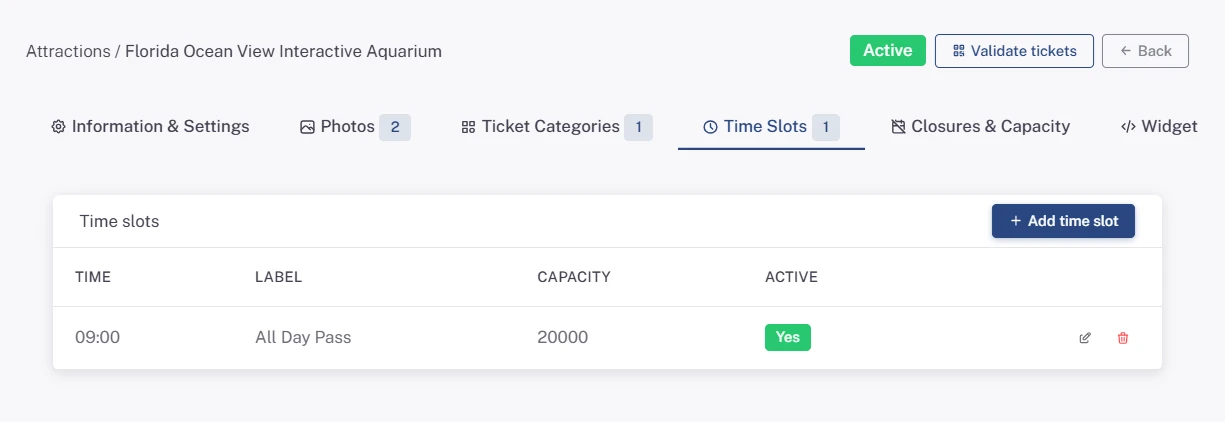
Each ticket counts as one person: if a family buys 2 General and 2 Child tickets, they take 4 spots. In the widget, each time shows as Available or Sold out. If someone tries to buy more tickets than are left, the widget tells them how many spots remain.
Close days or adjust capacity
2. Add a closure or an adjustment
In the Closures & capacity tab, click Add closure or capacity adjustment and fill in:
- Date: the day you want to change.
- Time slot: a specific time, or — All day — for every time slot that day.
- Closed: check it to stop selling on that date (or at that time).
- Capacity override (optional): a different capacity just for that date, for example fewer spots because of an event or more in high season.
- Note (optional): for example "Maintenance".
Click Add.
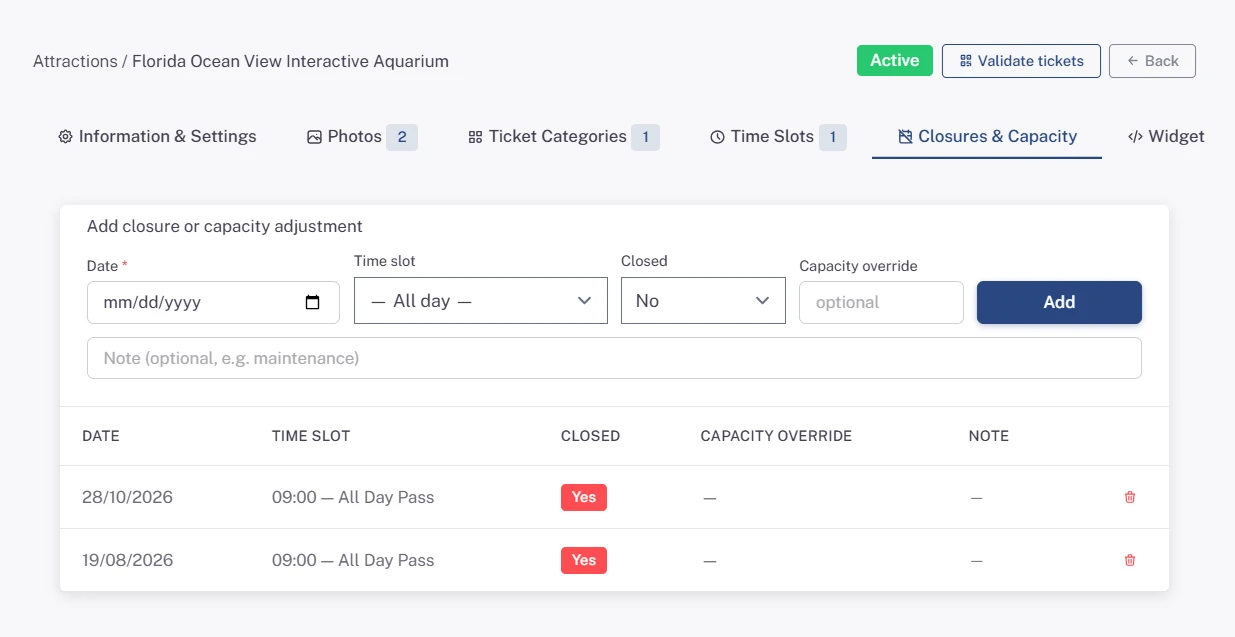
To remove a closure or an adjustment, delete it from the list. If you close a date that already has tickets sold, those tickets are not cancelled automatically: check them in Bookings.